TL;DR: Dash cam footage is stronger when the “behind the scenes” details line up, like time, location, and whether the file looks original. Keep the original files, avoid sharing-only exports, and set up your camera properly so the dash cam metadata stays believable when you actually need it.
Key Takeaways:
- Dash cam metadata can help confirm when and where something happened, but wrong settings can make it confidently wrong.
- Copy the original files off the microSD card first, then share duplicates so you do not strip data or crush quality.
- Stable power, correct placement, and a healthy high-endurance card prevent a lot of missing or corrupted clips.
- Front and rear coverage can add context that a single camera angle cannot catch.
Dash Cam Metadata, in Plain English
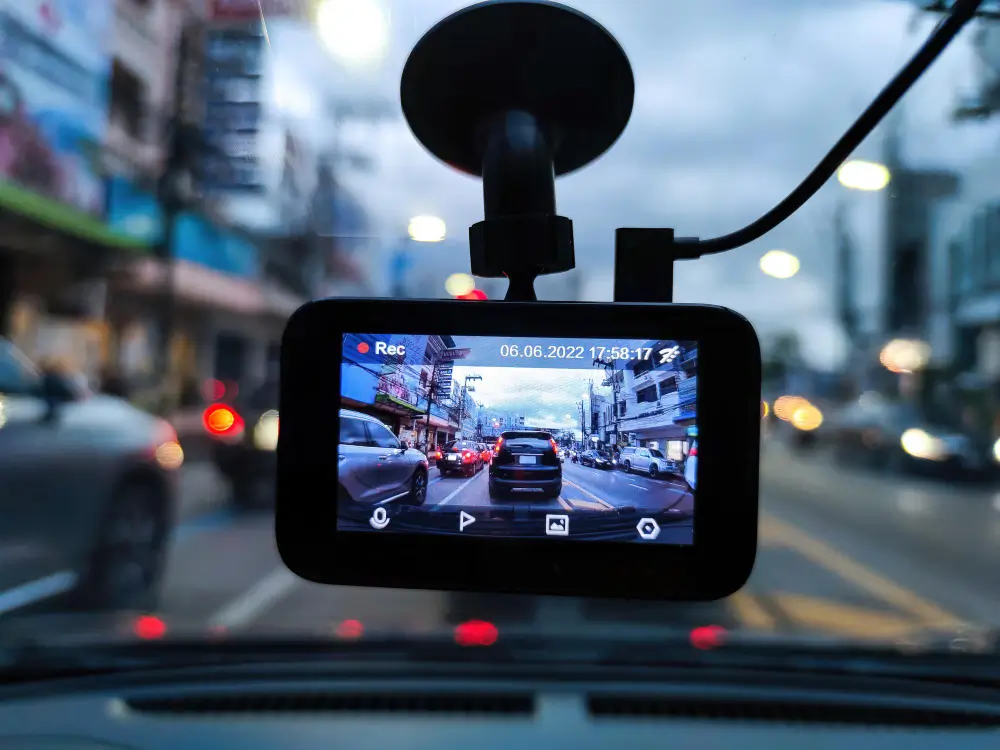
Dash cam metadata is extra info about the video that can live inside the file, sit beside it, or be printed on the picture as an overlay. It often includes basics like encoding settings and the time the clip was created.
Some dash cams also store GPS, speed, and event markers in proprietary tags that only the brand’s player reads properly. Others store very little true metadata and instead burn details onto the video as text, which is useful but not the same as data embedded in the file.

What’s In The Video File
Not every model records the same fields, but there is a pattern. When people talk about dash cam metadata, they are usually talking about a mix of timestamps, device identifiers, sensor readings, and file structure clues.
Time and Date
Most dash cams store a creation time and sometimes a start time, so a wrong setting makes the file confidently wrong. Some track time zone and daylight saving changes while others do not, so travel or a quiet reset can make your dash cam metadata look inconsistent.
GPS Coordinates
If your camera has GPS, it may store coordinates in the video file, a separate log, or both, which helps confirm where you were, which way you were travelling, and whether the clip matches the incident. GPS is not instant though, so if something happens right after ignition you might have video but no valid dash cam metadata location yet.
Speed
Dash cam speed is usually pulled from GPS, not your car’s ECU, so it can lag, drift, or drop to zero when the signal is weak. Treat it as helpful context, not a calibrated speed reading you can rely on to “prove” anything.
G-sensor Events
Most dash cams have a G-sensor (an accelerometer) that can tag a clip as an “event” when it detects a hit or sharp jolt, helping stop it being overwritten in loop recording. That tag might live inside the file, sit in a separate log, or simply be handled by how the camera names and locks clips, so if it’s missing after a real impact, people can start asking questions.
Camera Model and Firmware
Video files often include the device model, firmware version, and sometimes the recording profile. This matters when someone asks, “What camera is this, and is it known to glitch?”
Firmware updates can change bitrate, time handling, and file structure, so odd-looking footage is not always your imagination. Outdated firmware is an easy target in a dispute, so see our guide on future-proofing your dash cam setup for the next 5 years.
Serial Numbers and Unique Identifiers
Some dash cams embed a device ID or serial style identifier. This can help tie a file back to a specific unit, especially when multiple vehicles or cameras are involved. It can also help confirm that a clip came from your camera, not a random example file from the internet.
What Sits Beside The Video
This is where a lot of people get caught out. They copy the MP4 file, it plays fine, and they assume they have everything. Many dash cam systems store extra context as separate files that are easy to miss.
- GPS and driving logs: Some brands save a separate GPS log that links time stamps to coordinates, even if the video already shows a GPS overlay. If you only copy the MP4, you can lose the route map and speed graph data the brand’s viewer relies on.
- Event indexes and bookmarks: Many dash cams keep an index that separates “normal” clips from “event” clips so the important stuff does not get overwritten. If that index is missing or corrupted, the camera can look like it “forgot” what happened.
- Parking mode triggers: Parking mode often stores triggers (motion, impact, time-lapse) in a structured way using its own log files. If you ever need to prove parking mode actually fired, that sidecar data can be the difference.
Common Dash Cam Metadata Problems
These issues show up again and again, and none of them feel obvious until you need the footage.
The timestamp is wrong
Wrong timestamps raise suspicion fast. It usually comes from a reset, a battery disconnect, a dead internal clock battery, or an install where the time was never set.
GPS never locked
GPS needs time and a clear view of the sky. Tint, placement, vehicle design, and some accessories can block it, leaving dash cam metadata blank right when you need it.
Power instability corrupts segments
Dash cams hate unstable power. Loose connections, the wrong fuse, or a poor ground can cause cut-outs and corrupted clips.
The microSD card quietly fails
MicroSD cards wear out, especially with heat and constant recording. When they start failing, you get missing or corrupted files that may only break when played on another device.
Parking mode drains the battery
Long parking coverage needs a power plan that fits how you drive. A poor setup can drain the battery or shut down early, and the dash cam metadata will not fill the gaps.
Handle footage like evidence
You do not need to be a lab to avoid common mistakes. You just need to treat the file like evidence, not content.
Keep the original
If you can, remove the microSD card and copy the files to a computer without altering them. Do not cut, trim, or run the clip through a converter as your first step.
Keep the context
Grab the minutes before and after, plus the adjacent segments. Loop recording means context can exist across multiple files, and a single clip can look confusing without the lead-up, which is also why 2-channel dash cam installation can be a smart move when you want front and rear context in the same moment.
Use the brand viewer
Some metadata and logs only show correctly in the manufacturer’s player. If you need GPS mapping, event graphs, or sensor readouts, the dedicated viewer can be the difference between “looks fine” and “actually proves it.”
Dash cam metadata checklist
- Set the clock properly: Confirm the time, date, and time zone, then re-check after battery work or firmware updates.
- Make sure GPS actually locks: Test it on a normal drive and do not assume it works just because your model has GPS.
- Treat your microSD card like a consumable: Use a high-endurance card, format it on schedule, and replace it before it starts misbehaving.
- Match power to your real routine: If you rely on parking mode and you do not drive daily, you need a setup that can handle longer idle time.
- Avoid the dead-battery surprise: For long parking coverage, an external battery pack is often a smarter move than pushing your car battery to do everything.

Why Choose DNH DashCam Solutions
DNH DashCam Solutions is a Melbourne-based mobile dash cam installer serving areas within about 50 km of the CBD, fitting dash cams and reverse cameras across cars, SUVs, vans, and utes. The goal is simple: give you footage you can actually use, not just a camera stuck to your windscreen.
Their installs aim for a factory-style finish with stable power and tidy wiring, so your setup is less likely to fail when it matters. With more than 25 years of combined automotive experience, they focus on getting the camera placement and settings right for driving and parking mode, not leaving you to guess.
Ready for a setup you can trust?
If you’re in Melbourne and want a dash cam setup that records properly, parks safely, and looks factory-fitted, DNH DashCam Solutions can help. They’ll recommend the right camera and power plan, install it cleanly at your location, and set it up so your footage is actually usable.